When connecting to a named database (e.g., SERVER01\SQLEXPRESS), the SQL Server Browser service acts as a traffic director that guides Osnium to the right connection channel. If this service is turned off, your app won't be able to find the database.
1. Log in locally or via Remote Desktop Protocol (RDP) to the Windows Computer/Server hosting the Microsoft SQL Server database.
2. Press Win + R, type SQLServerManager15.msc (or search for SQL Server Configuration Manager in the Start menu), and press Enter.
3. In the left pane, click SQL Server Services. Locate SQL Server Browser in the right-hand details pane.
4. Right-click SQL Server Browser and select Properties. Select the Service tab, set Start Mode to Automatic, and click Apply.
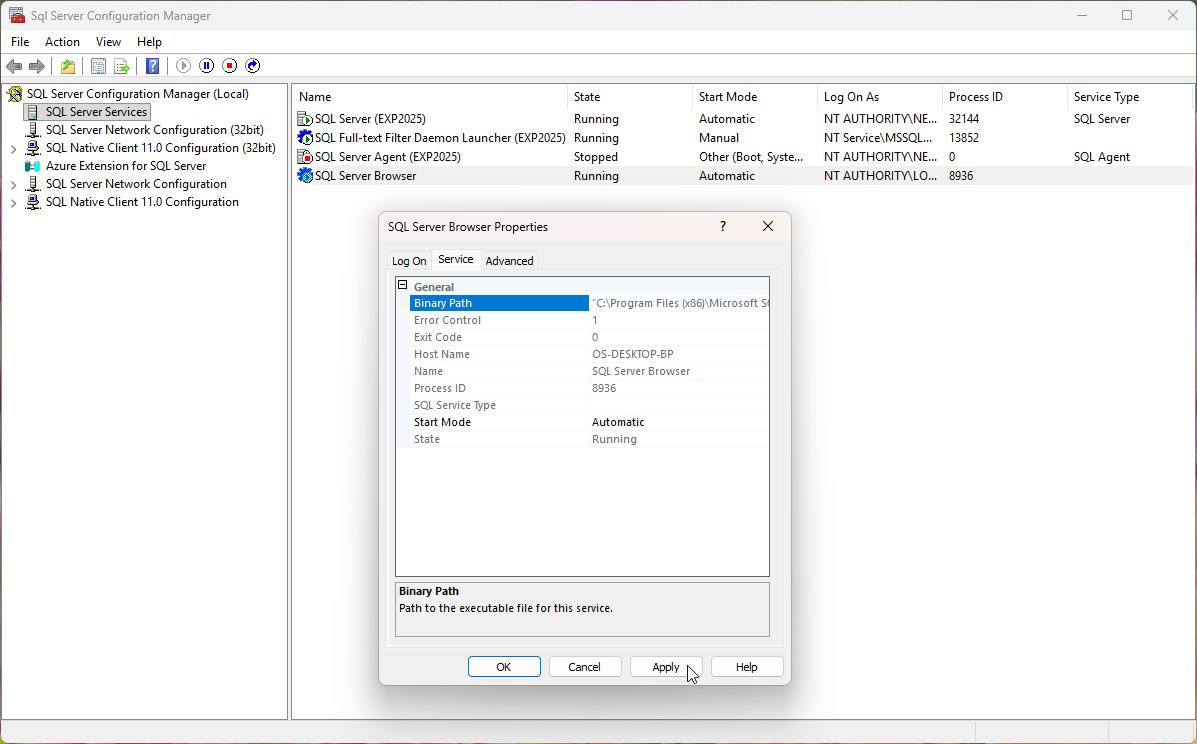
5. Select the Log On tab (or right-click the service in the main list) and click Start. Click OK to close the properties window.
• Alternatively, you can type in the search bar Services, open it, and then scroll down to SQL Server (SQLEXPRESS/OSNIUM), SQL Server Agent, and SQL Server Browser to perform the same task.
• If prompted, remember to Start/Restart the Services.
Was this article helpful?
That’s Great!
Thank you for your feedback
Sorry! We couldn't be helpful
Thank you for your feedback
Feedback sent
We appreciate your effort and will try to fix the article